User Manual
Features

Features
Access the basic informations of you profile.
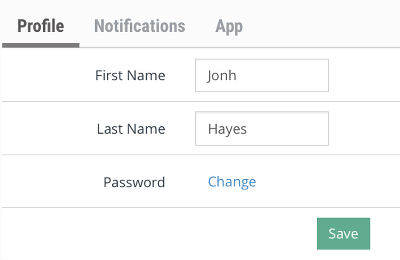
Edit your first and last name.
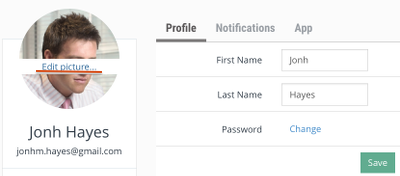
Upload a profile picture.
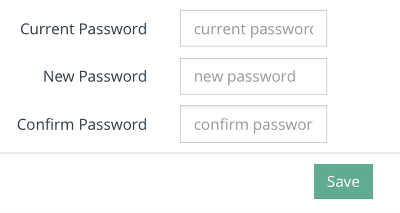
Change your current password.
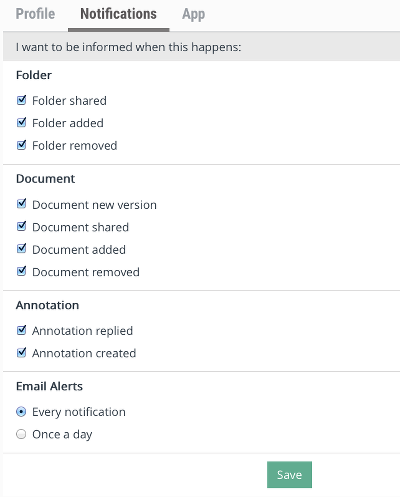
Define the notifications received by e-mail.
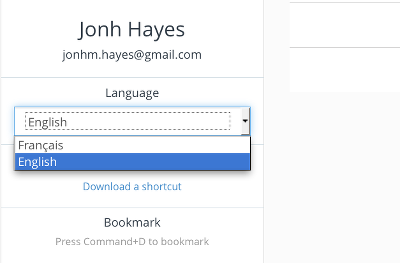
Change language.
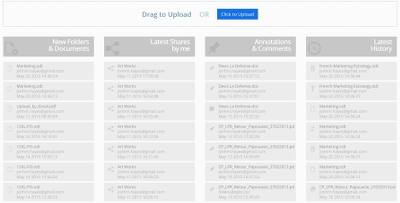
Quick view of the last actions done in New Folders & Documents, Latest Shares, Annotations & Comments and Latest History.
Define the side panel to close automatically when not in use.
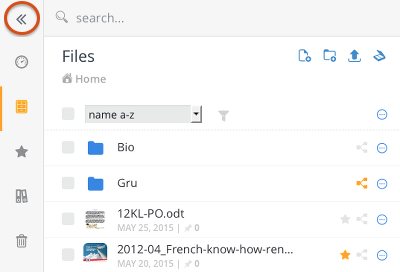
Access all the files uploaded and the folders created.
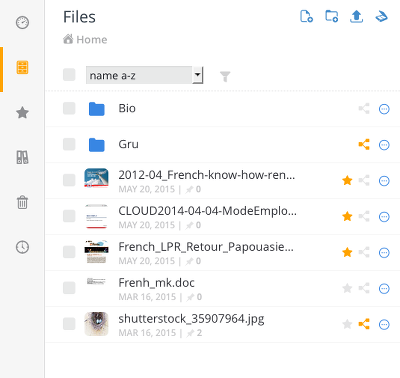
Open the Drop Down menu using the right mouse click.
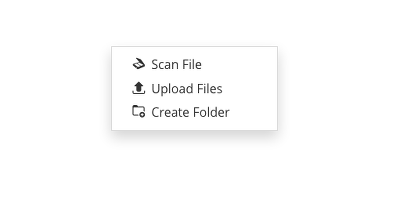
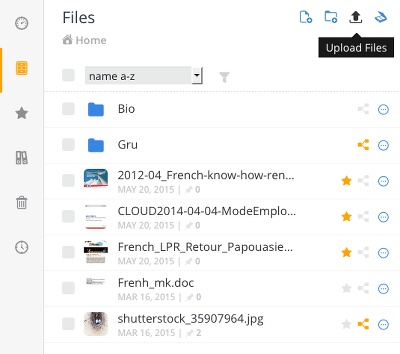
Upload Files to Zeenshare.
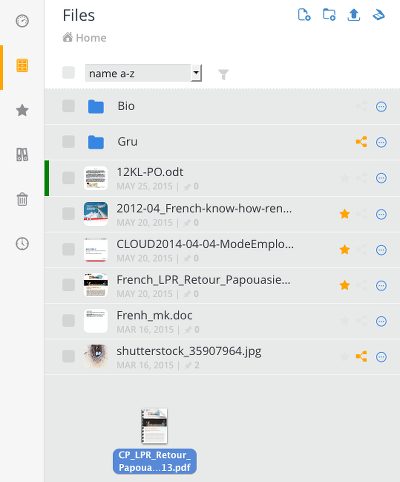
Drag and Drop files in 'Files' or 'Dashboard' tab to upload them.
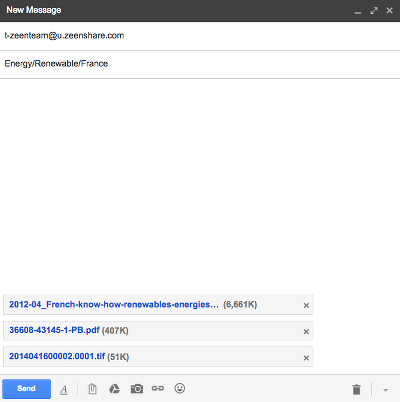
Upload multiple files to Zeenshare using your e-mail address.
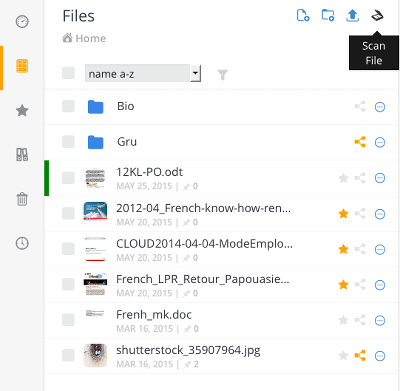
Use a Scan to Upload files to your Zeenshare account.
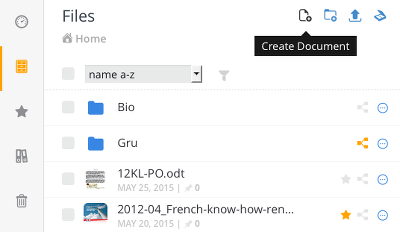
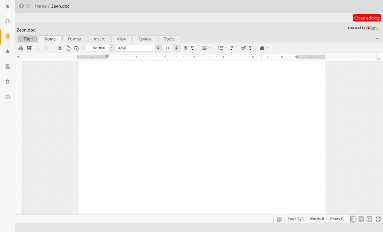
Create a new office document in Zeenshare using an integrated application (Zoho).
Delete file(s) or folder(s).
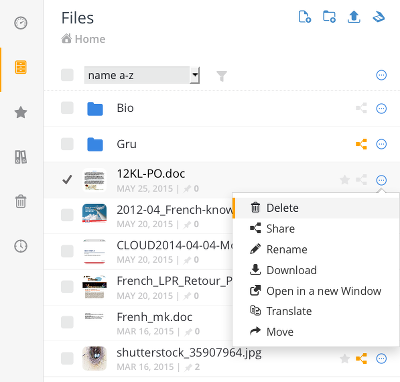
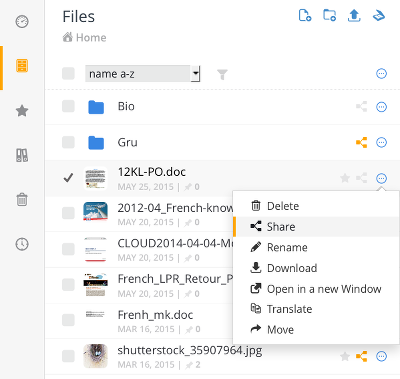
Share file(s) or folder(s).
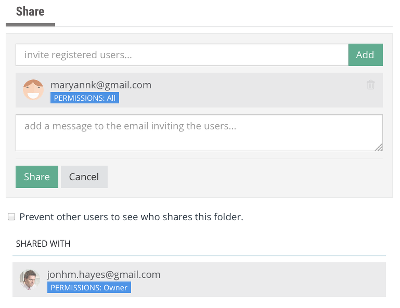
Add a message to be sent in the e-mail inviting the users for your file/folder.
Change the users permissions for your shared file/folder.
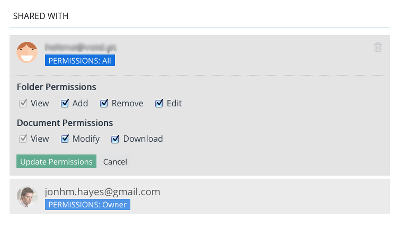
Delete users from the sharing list.
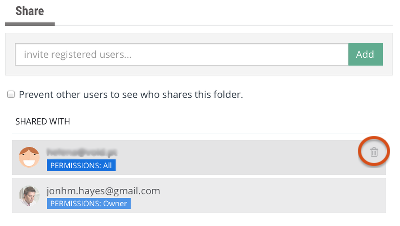
Assign a new name to your file/folder.
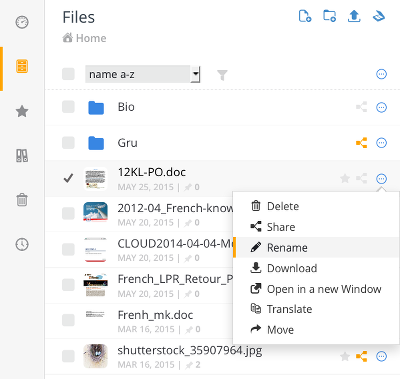
Download the file/folder from Zeenshare to your personal computer.
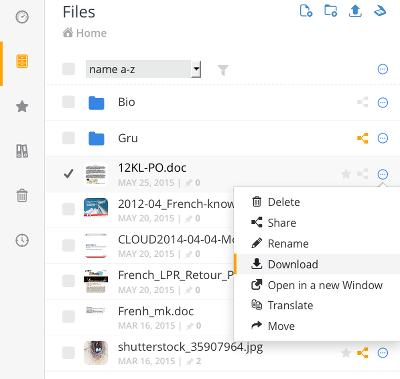
Open your file in a new browser window.
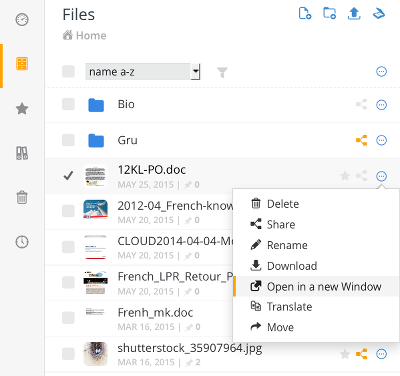
Translate an office document using an integrated translator.
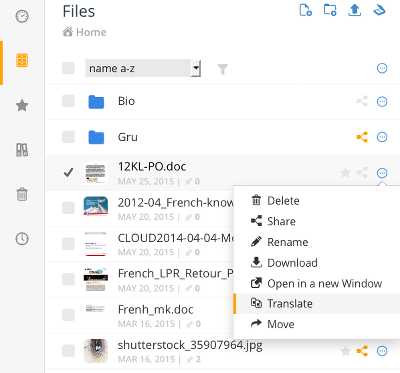
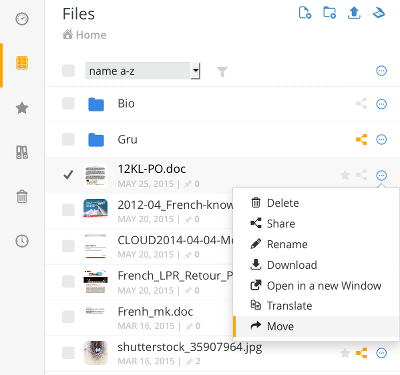
Move file(s)/folder(s) to another place.
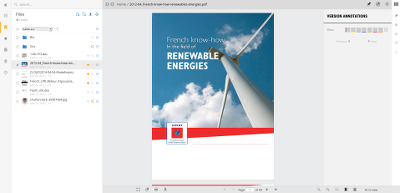
Open a file in the viewer.
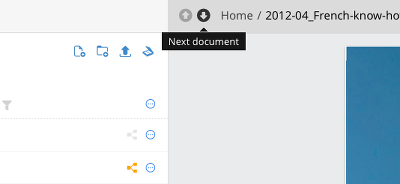
Navigate between files using Next and Previous buttons.
Navigate between document pages using navigations buttons.
Adjust the size of your document in the viewer. Use the Zoom In/Zoom Out buttons, or the predefined adjust view buttons (Actual Size, Fit to View or Full Width.
Maximize the file viewer with a full screen view mode.
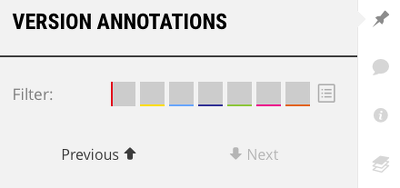
Create a version annotation for your file.
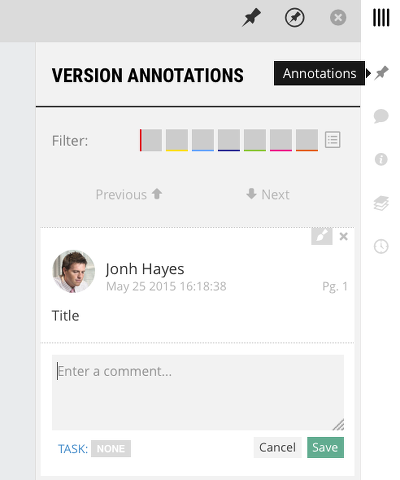
Activate Annotations to make version annotations, and deactivate annotations to navigate in the file.
Hide or Show annotations icon on document.
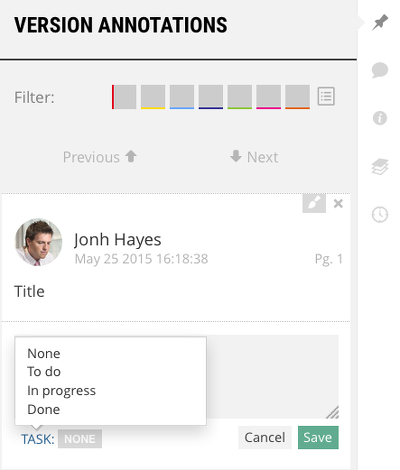
Define a task status to your annotation (To Do, In Progress or Done).
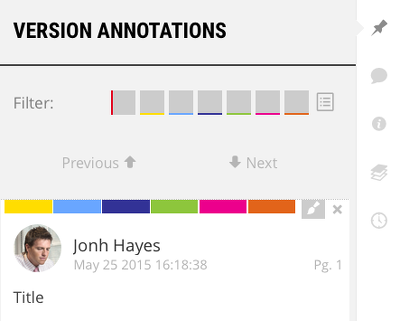
Assign a color to highlight important annotations.
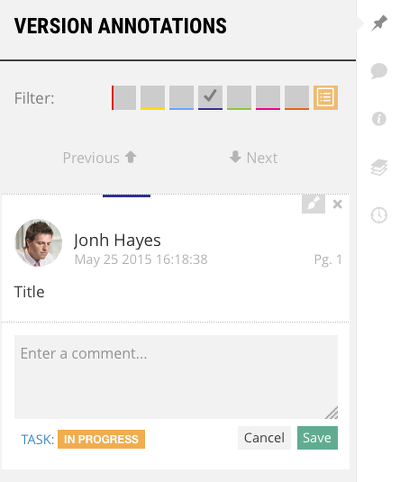
Filter annotations by Color, Task or New.
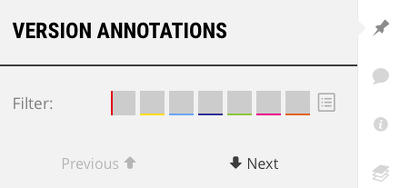
Navigate between annotaitons using Next and Previous buttons. You can also click on an annotation to open the corresponding pin, or click on a pin to open the corresponding annotation.
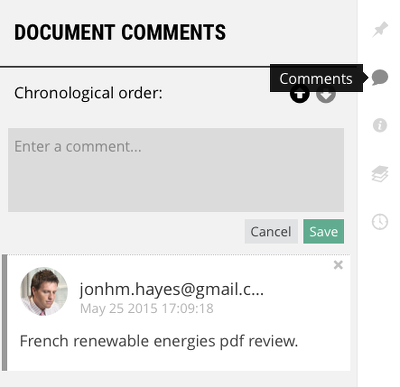
Make document comments for your document.
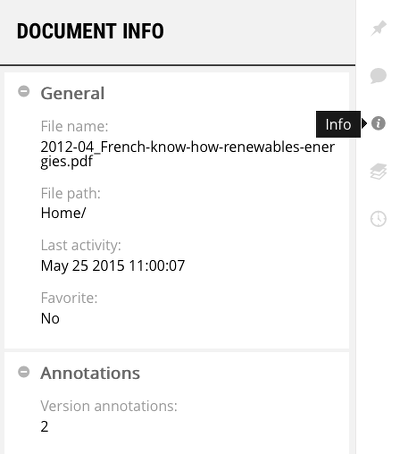
Access informations about your file. General Informations, nº of Annotations, nº of Comments, Sharing & Permissions and Version information.
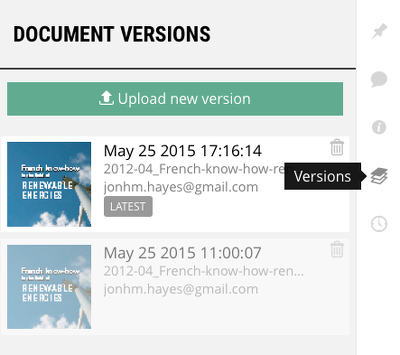
Access all versions of your document.
Upload a new file version.
Access document history.
Close or Open annotations side panel.
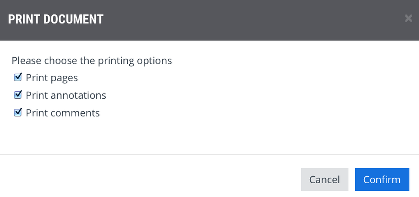
Print your document. You can print your document alone, print your document with all annotations made and print your document with all comments made.
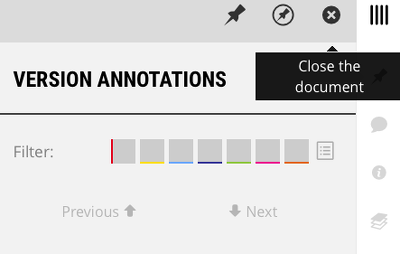
Close your document.
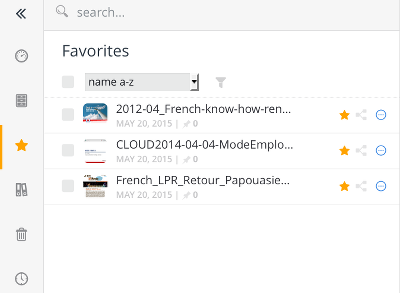
You can mark a file as favorite. To find all the favorites files open 'Favorites' tab.
Organize the files/folders you want to share in groups.
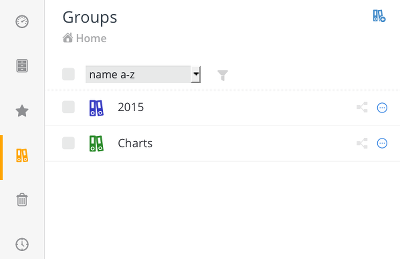
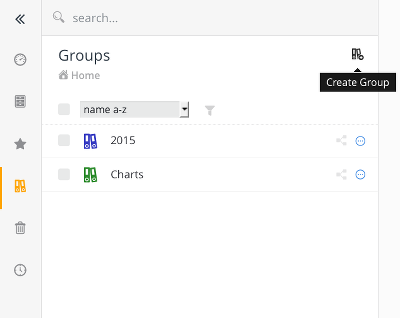
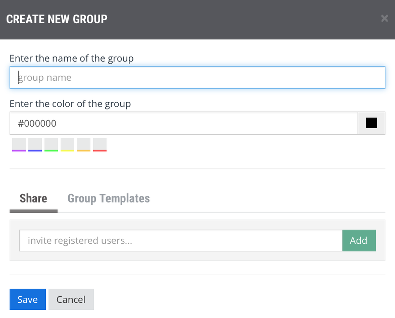
Create a Group. Choose a name and a color for your group.
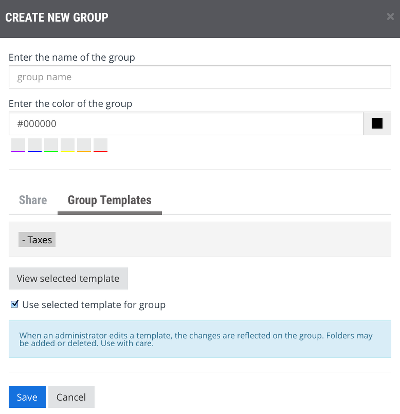
Create a group based on an available Template. Choose the name and the color for your Group.
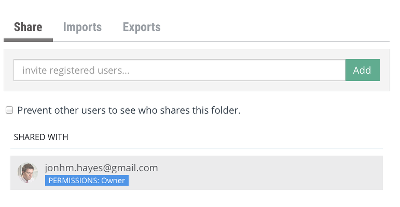
Share a group with other domain users.
You can use the option 'Prevent other users to see who shares this folder'.
Edit a group, change name or color.
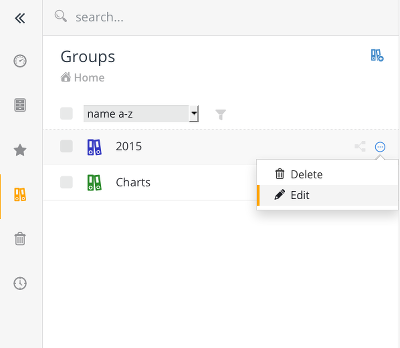
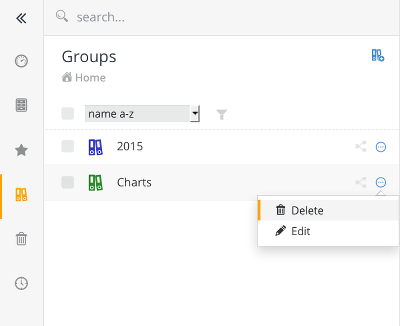
Delete a group.
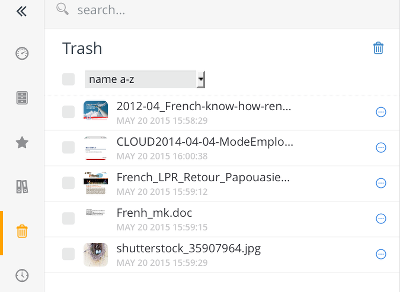
You can find all the deleted files here.
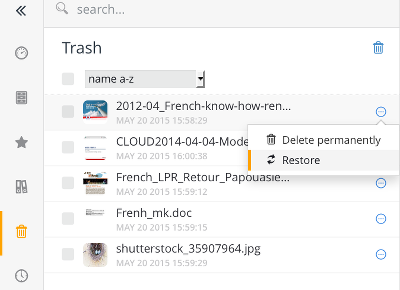
Delete permanently file(s).
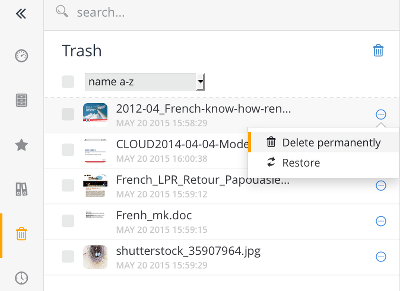
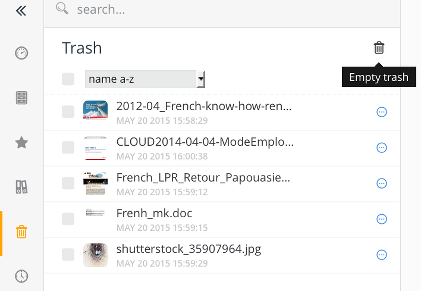
Restore a deleted file(s).
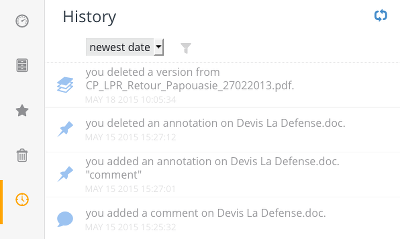
Look at all the actions made to your files and folders.
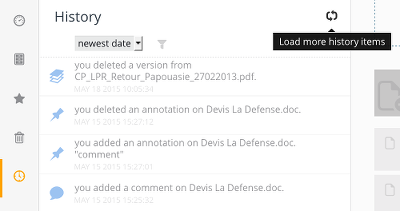
When the button is clicked more history actions are displayed.
Advanced Search engine that allows, in one place, a search across the entire application.
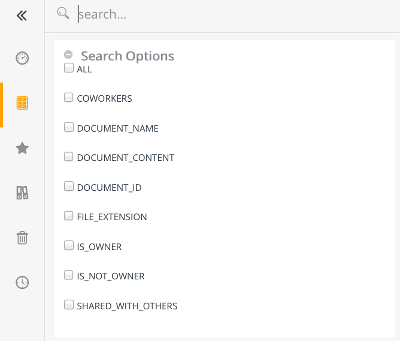
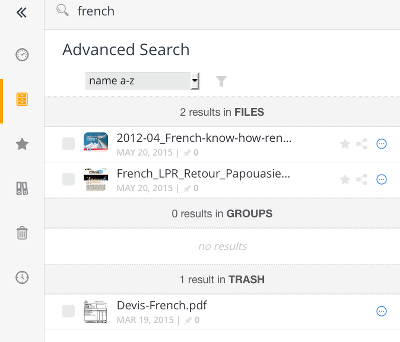
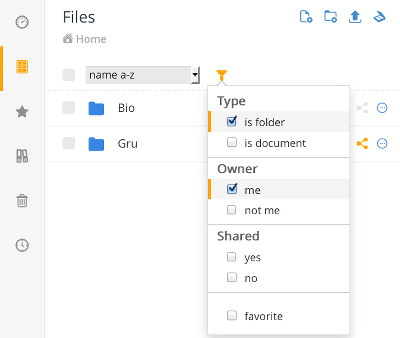
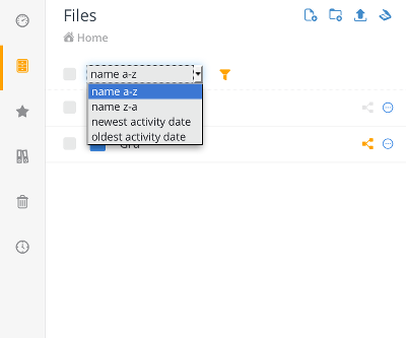
With Filter Content you can easily filter files based on file owner, file type, shared conditions or favorite status. You can also organize files by chronological or alphabetical order.
In each section you have a file filter, an order list or both.
Divided into eight sub sections this allows you
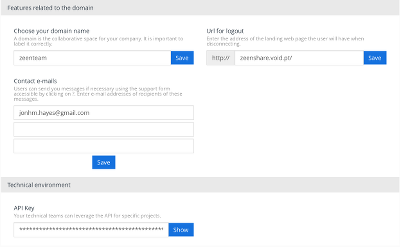
The general domain features include:
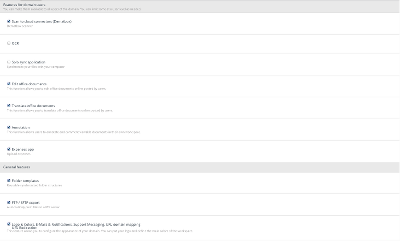
Control de user features and general features available on your domain.
User's features include:
General features include:
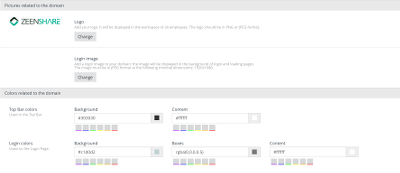
Control de appearance of your domain. Change the Logo and Login image and define de background, boxes and content colors.
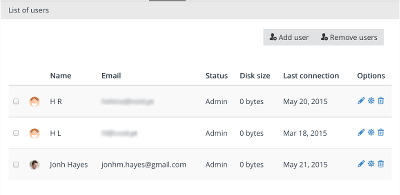
List with all domain users, with basic information about user names, user e-mails, current status, disk size occupied and Last connection.
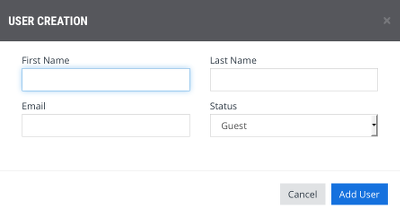
Add users to your domain.
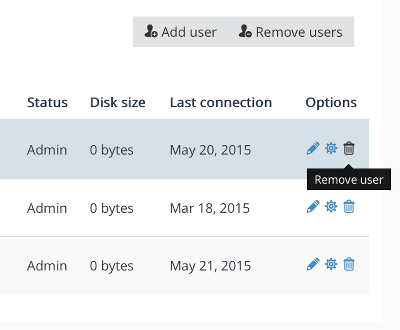
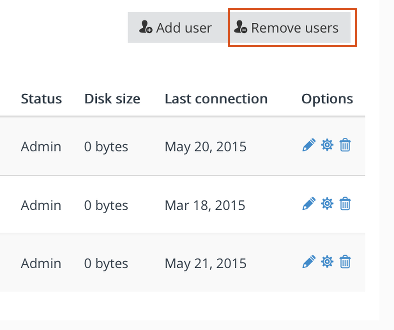
Remove users from your domain. One at time, or more than one at same time.
Edit your user name or status.
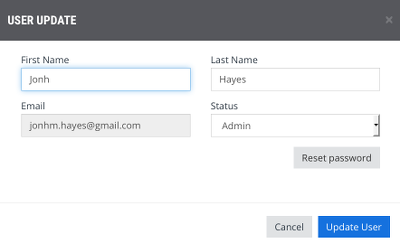
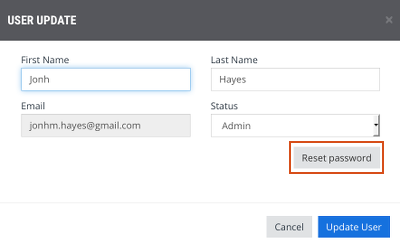
Reset the user password when it has been lost or forgotten.
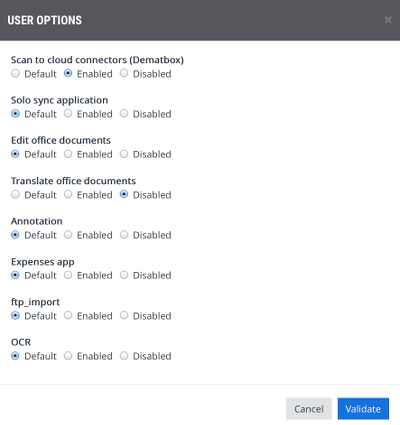
Edit the user features individually. For each user you can change the permissions to:
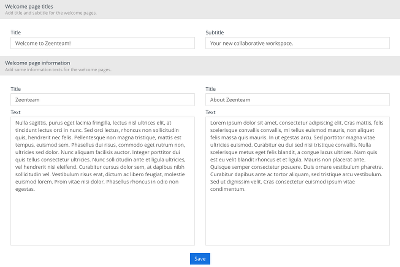
Add a title and subtitle for the welcome pages of your domain. (New)
Add information texts about your domain for the welcome pages.
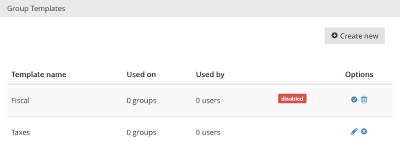
The Group Templates are displayed, with information about: template name, used on nº groups, used by nº users, current staus (for disable ones) and available options.
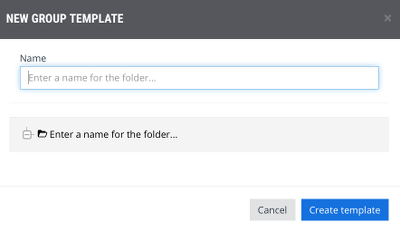
Create New group template.
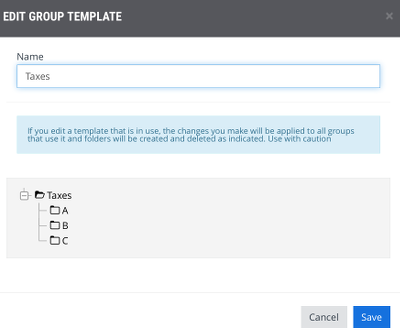
Edit a Group Template.
Disable a Group Template.
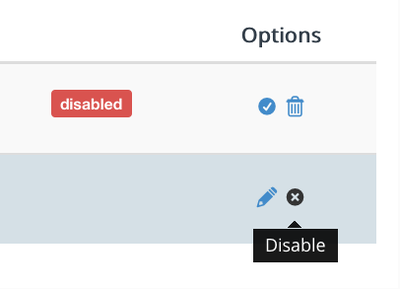
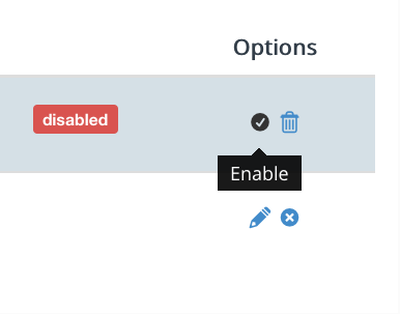
Enable a Group Template.
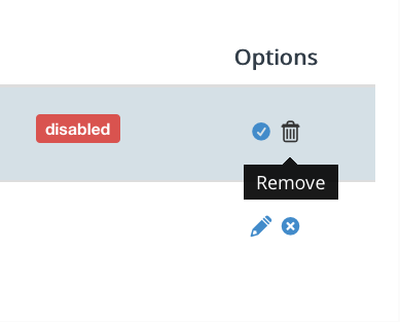
Remove a Group Template.
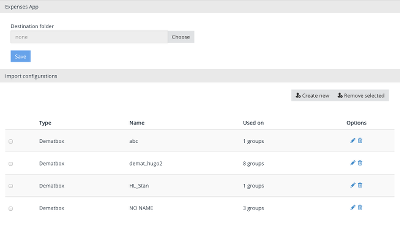
Define the import configurations for your domain.
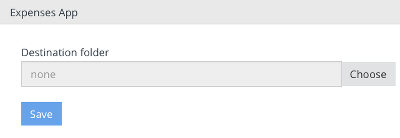
Define the expenses folder of your domain.
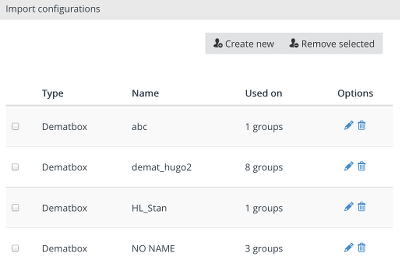
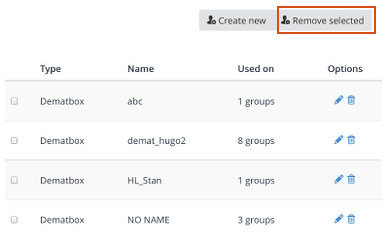
List with all imports in use, with information about import type, import name, used on nº groups and import available options.
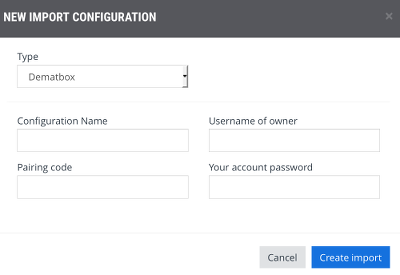
Create New import configuration
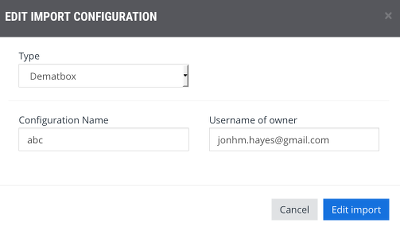
Edit an Import Configuration
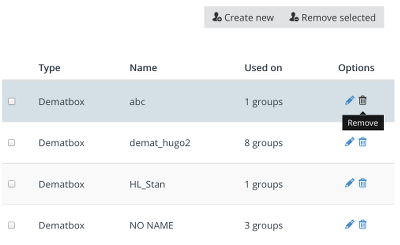
Remove a Import Configuration
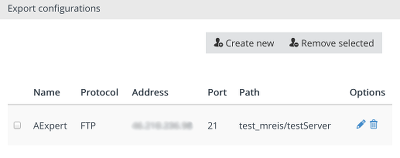
List all the exports in use, with informations about name, protocol used, IP address, port, path and available options.
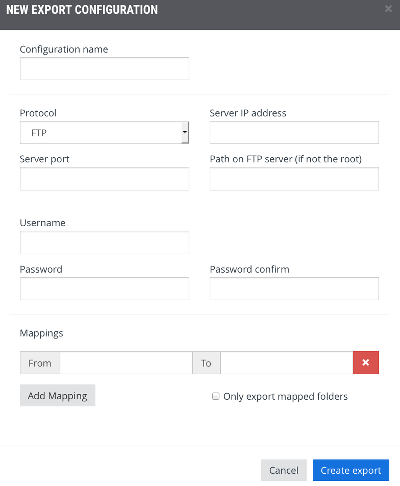
Create a new export configuration.
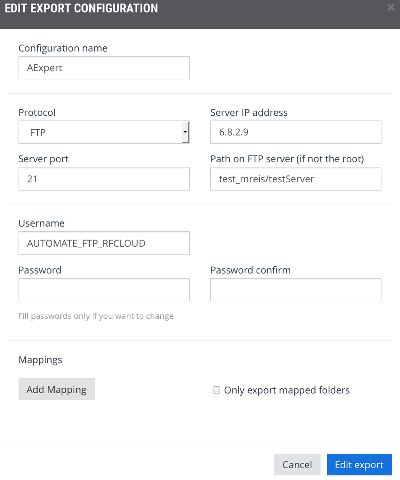
Edit an export configuration.
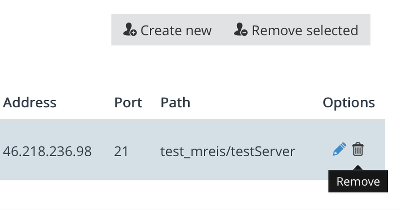
Remove a export configuration.
Manage Brother Scanners